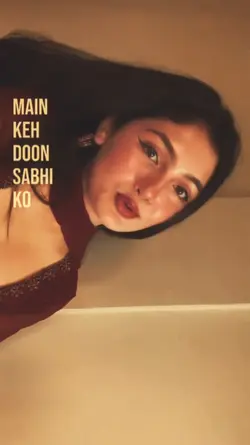
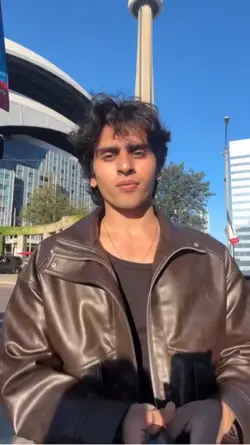
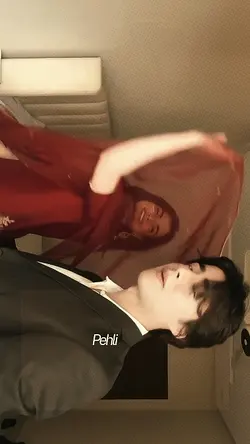
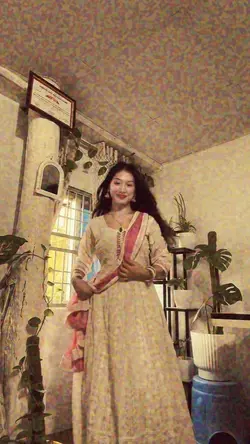
Discover how the 1 clip video template streamlines video creation for content creators, marketers, and social media enthusiasts. With this template, you can effortlessly turn a single video clip into a polished, professional-looking segment in just minutes. The intuitive interface ensures easy customization—add text, transitions, and effects without complex editing skills. Perfect for quick promotions, stories, or product showcases, the 1 clip video template is designed to save you time while enhancing your content's visual appeal. Stand out on platforms like Instagram, TikTok, or YouTube by leveraging high-quality, flexible design options. Start using the 1 clip video template today to engage your audience and boost your online presence. Ideal for beginners and professionals alike, this template supports versatile formats and is compatible with all major devices. Transform your content workflow and achieve eye-catching results in less time with CapCut - AI Tools.
Make one source clip carry the whole edit
The page includes velocity, Live Photo, slow-motion, cinematic, and other one-clip options. A 1 clip video template reduces the amount of footage you need, but it makes the choice of source clip more important. The clip needs a clear subject, enough usable length, and one moment that can hold attention.
Choose the clip before choosing the effect
For velocity or slow motion, look for a turn, step, gesture, expression change, or camera move with a clean beginning and end. A cinematic template can work with a slower reveal or a shot that contains useful foreground and background detail. Live Photo is more suitable when one strong image is the main material.
Trim away the time before anything happens, but do not cut so tightly that the action starts halfway through. Leave room for the template to speed up, slow down, or introduce the subject.
Use text to add context, not another storyline
One short location, date, product point, or thought can help the viewer understand the clip. Long text competes with the only visual moment. Preview the crop and timing at phone size, then check whether the ending lands naturally. A one-clip edit works when the template reveals more in the source, not when it tries to hide that the clip has no clear focus.
FAQs
Q: How long should my source clip be for a 1 clip video template?
A: It should be long enough to include a clean lead-in, the main action, and a short finish. The exact duration depends on the template preview. Avoid clips that begin after the action starts or end before it finishes, because timing effects need usable material around the key moment.
Q: What footage works best with a one-clip velocity template?
A: Choose a clip with one readable movement and enough frames before and after it. A turn, walk, gesture, or camera move gives the speed change a purpose. Random shake or movement outside the frame usually becomes more distracting when velocity changes are added.
Q: Can I use one photo instead of a video clip?
A: Yes, when the selected layout is built for Live Photo or still media. Use an image with a clear subject and enough space for movement or text. Do not place a still image into a template whose main effect depends on continuous video motion.
Q: Should I crop the clip before adding it to the template?
A: First compare the source orientation with the template preview. A rough crop can help remove empty space, but leave room around faces, hands, and moving subjects. Final cropping should be checked inside the template because its frame and motion may change what remains visible.
Q: How much text should I add to a one-clip edit?
A: Keep it to one short message that explains the moment: a place, date, name, product point, or brief thought. Put it over a quiet area and make sure it can be read before the effect changes. The clip should remain the main source of information.
Q: What should I check before exporting a one-clip template video?
A: Check the crop through the full motion, the clarity of the key action, text timing, and whether the ending feels complete. Watch once without sound. If the clip does not communicate a clear moment on its own, a different source file may help more than another effect.